 | NOTICE
|
| Irreparable damage to the camera |
| If the camera ist powered down during firmware update it may get into a non-functional state. Recovery may not be possible. |
更新固件仅用于更改相机功能或修复已知错误。
任何固件更新不仅可能为相机添加新功能或修复已知问题。它还可能替换以前的功能或更改相机特性。有关详细信息,请参阅固件发行说明。
- Download firmware from the Chromasens website or use the firmware file provided by Chromasens.
|
|
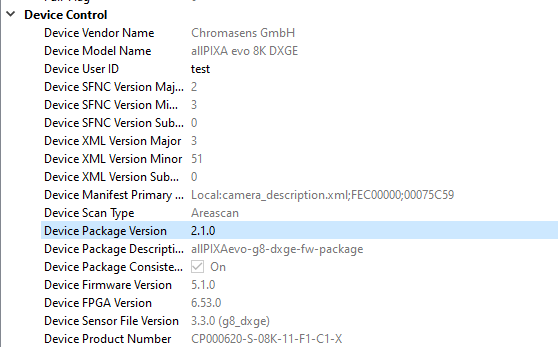
- Note the Device Package Version of the currently installed firmware displayed in the Device Control feature group.
|  |
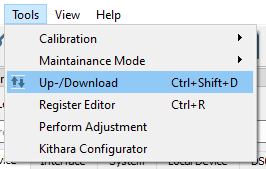
- In the menu bar navigate to Tools.
- Click Up-/Downloador use the hotkey Ctrl+Shift+D.
|  |
The Update/Download wizard opens. - Click Select Update File and select the Firmware Package file to upload and click Open.
NOTE: Firmware Package file For allPIXA evo select the allPIXAevo_listfile_......ini file.
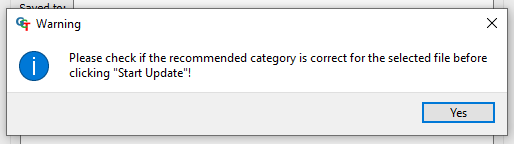
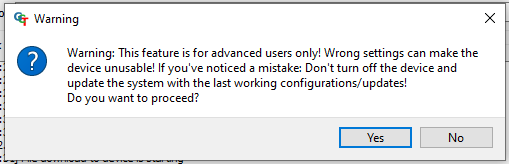
For allPIXA neo select the allPIXAneo_listfile_.....ini file. GCT shows a warning message. - Check if the Update field shows the Firmware Package file type.
- Click Start Update.
GCT shows a warning message. - Click Yes to start the Upload.
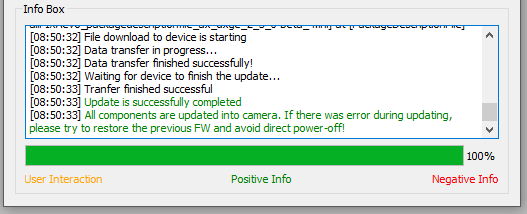
NOTE: Time for Update Depending on the file size, firmware upload may take up to several minutes. - Check the text in the Info Box: If the update was successful, it contains a green confirmation message “Update is successfully completed”.
NOTE: Update Status If the update was unsuccessful, do not switch off the camera, try to restore the previous state by uploading the correct file for the previously selected file type. | 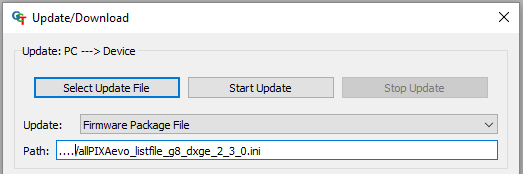
 |
- Power Cycle and Reconnect the camera
NOTE: Power Cycle It is recommended to disconnect the power supply for 30 seconds.
|
|
- Check the Device Package Version in the Device Control feature group to make sure that the camera successfully booted with the new firmware.
|
|